Command Palette
The command palette is a quick-access search interface that lets you find and navigate to any resource, category, or action in Kuberniq using just your keyboard. It is inspired by the command palettes in VS Code and other modern developer tools.
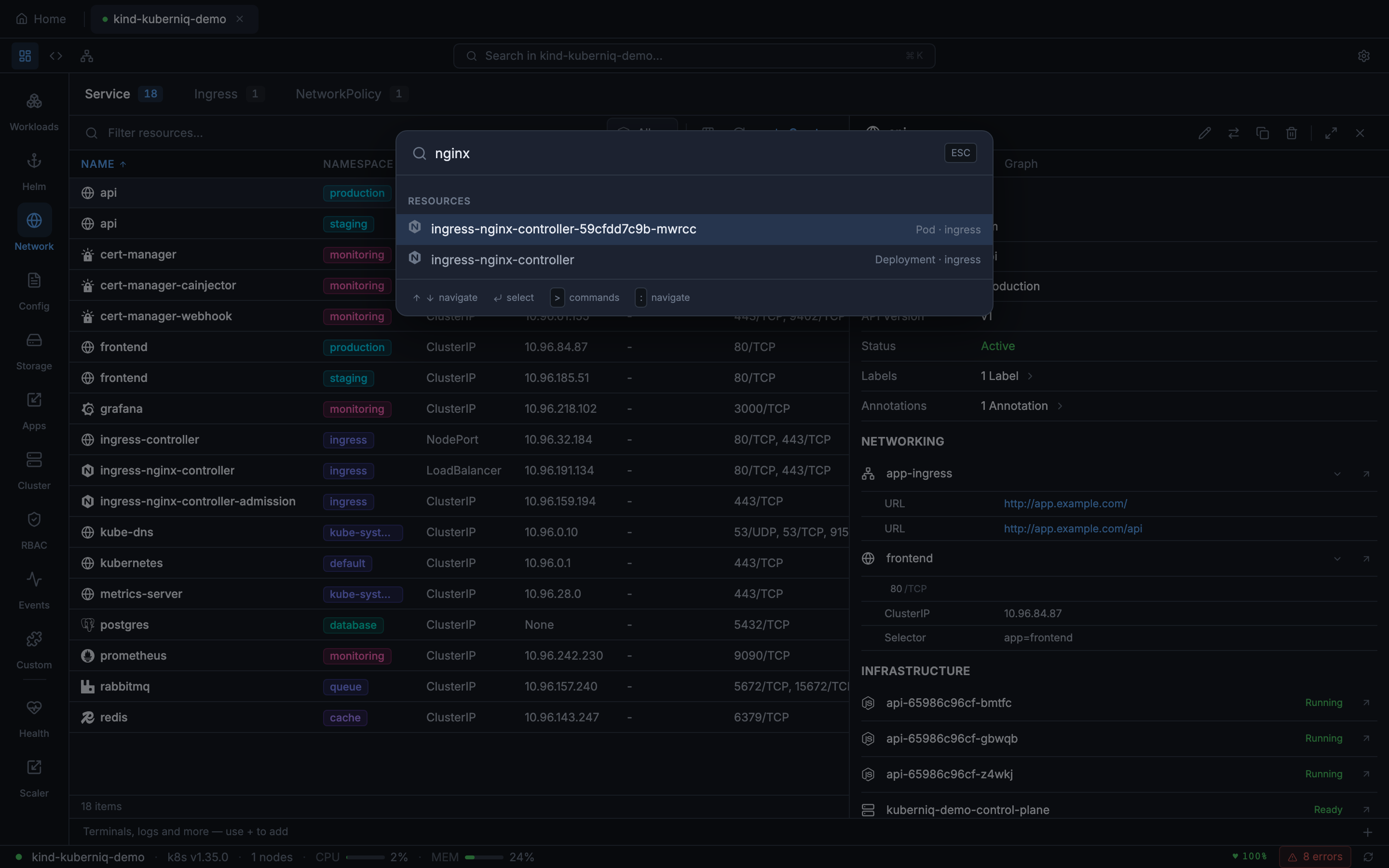
Opening the Palette
Activate the command palette with the keyboard shortcut:
- macOS: Cmd + K
- Windows / Linux: Ctrl + K
The palette opens as a centered modal overlay with a search input that receives focus immediately, so you can start typing right away.
Resource Search
The command palette uses fuzzy matching to search across all resources in the active cluster. As you type, results are filtered and ranked by relevance. The search matches against:
- Resource name — The
metadata.nameof the resource (e.g., "nginx-deployment") - Resource kind — The type of resource (e.g., "Deployment", "Service", "ConfigMap")
- Namespace — The namespace the resource belongs to (e.g., "kube-system", "default")
Each result shows the resource name, kind, and namespace so you can distinguish between similarly named resources. Selecting a result navigates to that resource's detail panel.
Category Navigation
You can also use the command palette to jump to sidebar categories. Typing a category name like "Deployments", "Services", or "ConfigMaps" shows it as a navigation option. Selecting it switches the main view to that resource category, equivalent to clicking the sidebar entry.
Recent Resources
The command palette remembers recently accessed resources and shows them at the top of the results when the search input is empty or when the query matches a recent item. This gives you fast re-access to the resources you work with most frequently, without needing to type their full names. Recent history is maintained per cluster session.
Feature Commands
Built-in features such as Health Monitor, Resource Graph, Batch Scaler, and Prometheus Metrics register custom commands that appear in the command palette. These commands are listed alongside resource results and category navigation options, letting you quickly access advanced features without navigating through menus.
Keyboard Navigation
The command palette is fully navigable with the keyboard:
- Up Arrow / Down Arrow — Move the selection highlight through the results list
- Enter — Confirm the selection and navigate to the highlighted result
- Escape — Close the palette without taking action
You can also click results with the mouse if you prefer. The palette closes automatically after you select a result.