File Browser
Kuberniq includes a file browser that lets you explore the filesystem of running containers and PersistentVolumeClaim storage. You can navigate directories, view file metadata, and retrieve file contents — all from the detail panel without opening a terminal.
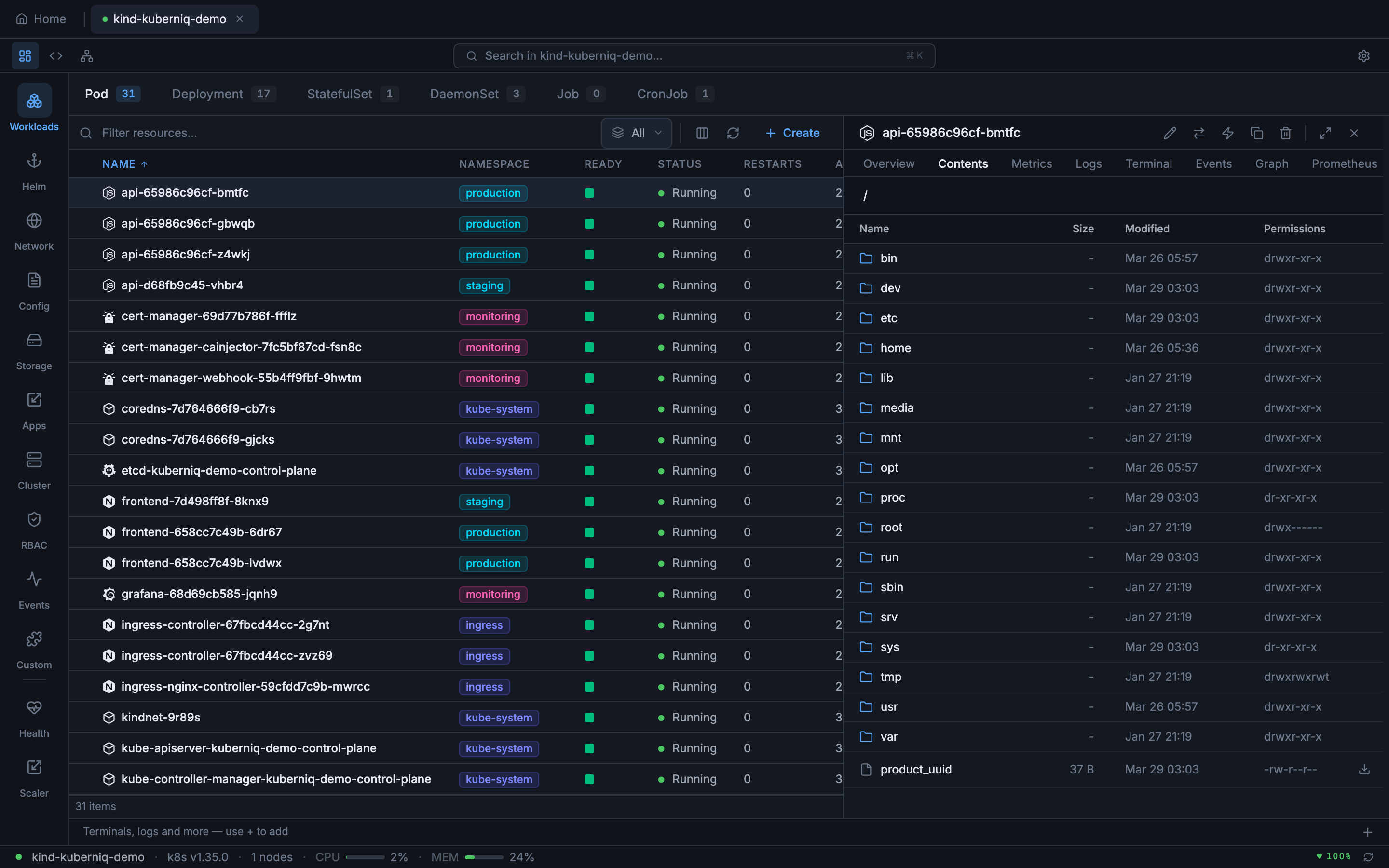
Browsing Pod Filesystems
To browse a pod's filesystem, select a pod in the resource table and click the Files tab in the detail panel. Kuberniq connects to the container using a non-interactive exec session and lists the contents of the root directory. Click on any directory to navigate into it, or click a file to view its contents.
For pods with multiple containers, a container selector lets you choose which container's filesystem to browse. Each container has its own independent filesystem view.
Browsing PVC Contents
PersistentVolumeClaim entries in the Storage section also support the file browser. When you select a PVC and open the Files tab, Kuberniq identifies a pod that has the PVC mounted and uses it to list the contents of the mount path. This lets you inspect the files stored on persistent volumes without needing to know which pod has the volume mounted.
File Listing Details
The file browser displays a table with the following columns for each entry:
- Name — The file or directory name, with an icon indicating the type
- Type — File, directory, or symlink
- Size — Human-readable file size (e.g., 4.2 KB, 1.3 MB). Directories show a dash.
- Modified — Last modification timestamp
- Permissions — Unix permission string (e.g.,
rwxr-xr-x) - Owner / Group — The user and group that own the file
Symlink Resolution
Symbolic links are displayed with a distinct icon and show their target path. When you click a symlink that points to a directory, the browser navigates to the target directory. Symlinks pointing to files display the target file's contents when clicked. Broken symlinks (where the target does not exist) are visually marked and display the intended target path.
Safe File Operations
The file browser uses non-TTY exec sessions to list files and retrieve contents. This means
the operations do not allocate a terminal or interfere with running processes. The commands
executed are standard utilities like ls and cat that are available
in virtually all container images.
File Content Retrieval
When you click a file, its contents are retrieved using Base64 encoding to ensure safe transmission of binary data and special characters over the WebSocket connection. Text files are decoded and displayed in a read-only viewer. The file browser is intended for inspection; to modify files, use the Pod Terminal.
Supported Resources
The file browser tab is available in the detail panel for the following resource types:
- Pods — Browse any container's filesystem directly
- PersistentVolumeClaims — Browse the contents of the mounted volume
- Workload resources — Deployments, StatefulSets, DaemonSets, Jobs, and CronJobs resolve to their underlying pods, letting you browse the filesystem of any managed pod