Pod Terminal
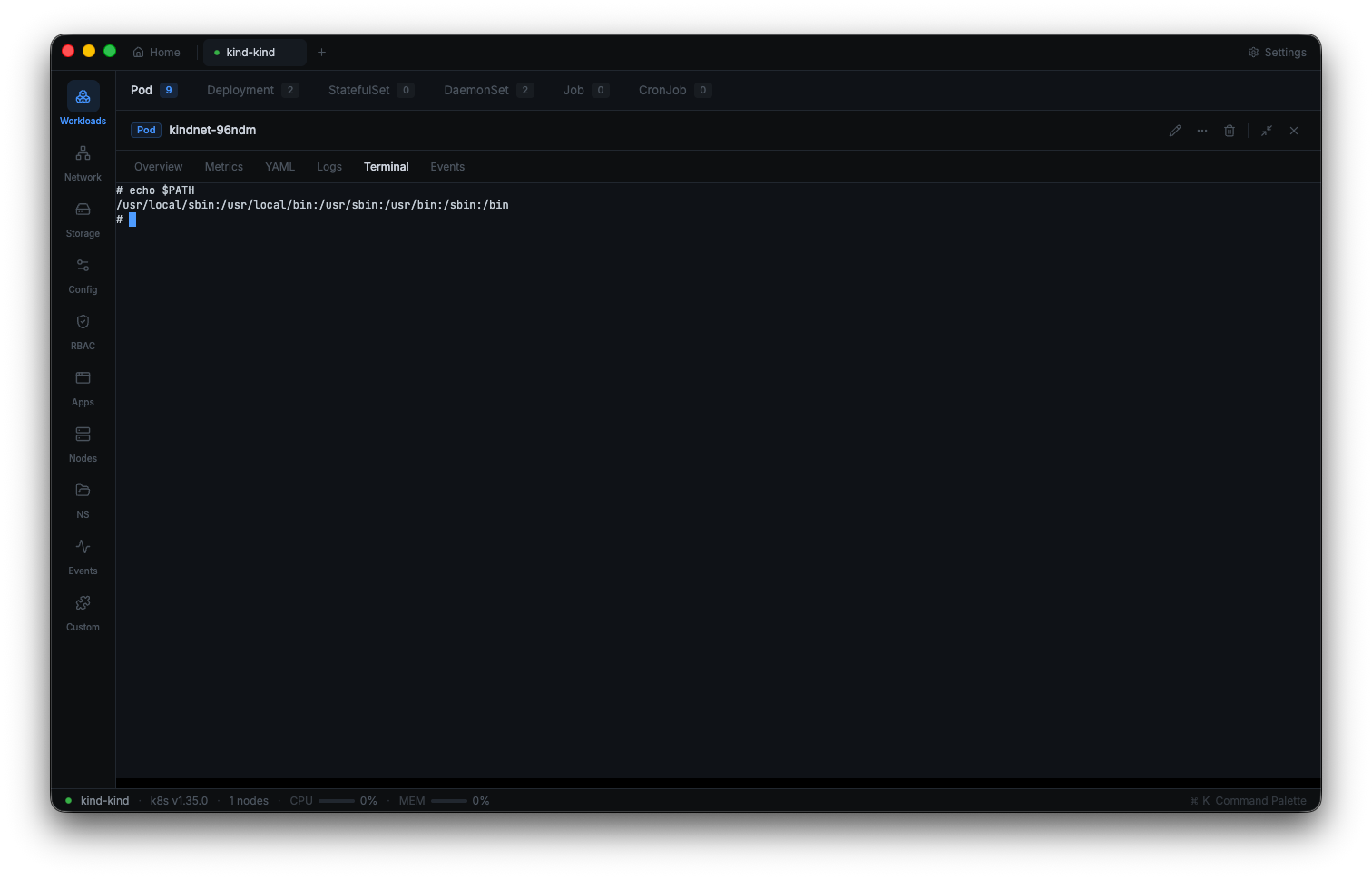
Kuberniq provides a fully interactive terminal for executing commands inside running containers.
Powered by xterm.js, the terminal supports the same shell experience you get with
kubectl exec -it — but embedded directly in the IDE with tabbed session management.
Opening a Terminal
To open a terminal session, navigate to any running pod and click the Terminal tab in the
detail panel. Kuberniq starts an exec session using /bin/sh as the default shell,
with stdin, stdout, and stderr attached. If the container has /bin/bash or
/bin/zsh available, you can start them from within the session.
You can also right-click any pod in the resource table and select "Open Terminal" from the context menu.
Terminal Emulation
The terminal uses xterm.js, the same terminal emulator used by VS Code's integrated terminal. It provides full VT100/xterm compatibility, including:
- Color output (ANSI 256 and truecolor)
- Cursor positioning and movement
- Line editing with readline support
- Mouse events for applications like
htop,vim, andless - Copy and paste with standard keyboard shortcuts
- Scrollback buffer for reviewing previous output
Container Selection
When a pod has multiple containers, Kuberniq displays a container selector that lets you choose which container to exec into. This supports all container types:
- Main containers — The primary application containers defined in the pod spec.
- Init containers — Available for exec while they are running during pod initialization.
- Sidecar containers — Long-running helper containers alongside the main container.
- Ephemeral containers — Debug containers added via
kubectl debug.
The selector shows the container name, image, and current state so you can quickly identify the right target.
Automatic Resize
The terminal automatically adjusts its dimensions when you resize the panel. Kuberniq sends
a resize signal to the exec session, updating the terminal's rows and columns so that
applications like vim, top, and less render correctly
at any panel size. Drag the panel divider to make the terminal taller or shorter, and the
content reflows immediately.
Tabbed Sessions
Terminal sessions open in the bottom panel of the IDE, similar to how VS Code handles its integrated terminal. Each session appears as a tab, labeled with the pod name and container. You can have multiple terminal sessions open simultaneously — to different containers within the same pod, or to containers across different pods and even different clusters.
Click a tab to switch between sessions. Close a tab to terminate the exec session and free the server-side resources.
Secure Transmission
All terminal input is Base64-encoded before transmission over the WebSocket connection. This ensures that binary data, control characters, and special sequences are transmitted faithfully without corruption. The exec WebSocket endpoint handles encoding and decoding transparently, so the experience is seamless.
Reconnection
If the network connection is interrupted (for example, when switching Wi-Fi networks or resuming from sleep), Kuberniq automatically attempts to reconnect the terminal session. While disconnected, the terminal displays a "Reconnecting..." status. Once the connection is re-established, you can continue working in the same shell session if it is still alive on the server side. If the original session has terminated, Kuberniq starts a new exec session.
Session Management
Kuberniq tracks all active exec sessions in the exec store. Each session records:
- The pod name, namespace, and container name
- The cluster context the session belongs to
- The connection state (active, reconnecting, closed)
- The session start time
When you disconnect from a cluster, all exec sessions for that cluster are automatically cleaned up to prevent orphaned connections.