YAML Editor
Kuberniq includes a full-featured YAML editor powered by Monaco Editor — the same editor engine that powers Visual Studio Code. It provides Kubernetes-aware schema validation, intelligent code completion, syntax highlighting, and multi-tab editing so you can work with resource manifests directly inside the IDE.
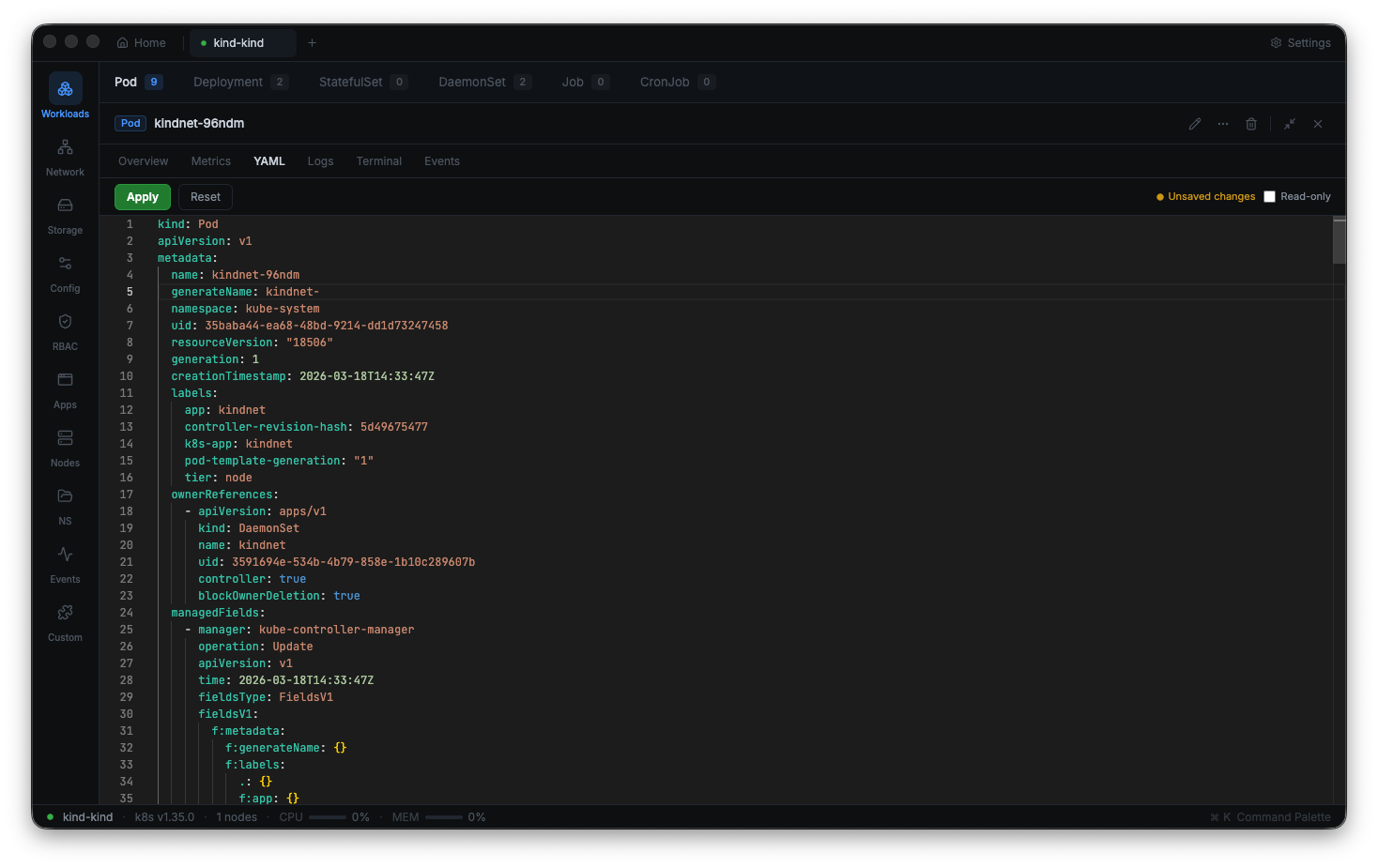
Monaco Editor
The editor provides all the features you expect from a modern code editor:
- Syntax highlighting for YAML with proper handling of multi-line strings, anchors, and aliases
- Line numbers, code folding, and bracket matching
- Find and replace with regular expression support
- Multiple cursors and column selection
- Minimap for navigating large manifests
- Configurable font size and theme integration with the Kuberniq dark theme
Kubernetes Schema Validation
As you type, the editor validates your YAML against the Kubernetes API schema for the resource kind you are editing. Validation errors appear as inline markers (red squiggly underlines) with detailed error messages in the problems panel. Common issues caught by validation include:
- Unknown or misspelled field names
- Incorrect value types (e.g., string where a number is expected)
- Missing required fields (e.g.,
apiVersion,kind,metadata) - Invalid enum values (e.g., unsupported
restartPolicyvalues)
Hover over any error marker to see the full diagnostic message describing what is wrong and what the correct value should be.
Intelligent Code Completion
The editor provides context-aware code completion for Kubernetes resource fields. When you start typing a field name, a suggestion list appears showing valid fields for the current position in the document. Each suggestion includes the field's type, description, and whether it is required. Completion works for:
- Top-level fields (
apiVersion,kind,metadata,spec) - Nested spec fields specific to each resource kind
- Container spec fields (
image,ports,env,resources, etc.) - Enum values (e.g.,
protocol: TCP|UDP|SCTP,type: ClusterIP|NodePort|LoadBalancer)
Multi-Tab Editing
You can open multiple resources for editing simultaneously, each in its own tab. Tabs are labeled with the resource kind, name, and namespace for easy identification. This is useful when you need to cross-reference fields between resources — for example, verifying that a Service's selector matches a Deployment's pod labels.
Tabs can span multiple clusters: if you have two clusters connected, you can have a Deployment open from one cluster and a ConfigMap from another, side by side in the tab bar.
Applying Changes
After editing a manifest, click the Apply button (or the corresponding keyboard shortcut) to send the changes to your cluster. The editor supports two modes:
- Update existing resource — If the resource already exists, Kuberniq sends a patch or replace request to update it in place.
- Create new resource — If the resource does not exist, Kuberniq creates it. You can write a manifest from scratch, set the
apiVersion,kind, andmetadata, and apply it to create the resource.
You can also delete the resource directly from the editor using the Delete button in the editor toolbar.
Fullscreen Mode
Press Ctrl+E (or Cmd+E on macOS) to toggle fullscreen mode. In fullscreen, the editor expands to fill the entire window, hiding the sidebar and resource table. This is useful when working with large manifests that benefit from maximum screen space. Press the shortcut again to return to the normal layout.
Unsaved Changes Detection
The editor tracks whether you have made changes to a resource's manifest since it was loaded. Tabs with unsaved changes display a dot indicator next to the tab title. If you attempt to close a tab or navigate away while there are unsaved changes, Kuberniq displays a confirmation dialog asking whether you want to discard the changes or continue editing.